skip to main | skip to sidebar

Friday, February 8, 2013

Check Your Requirements When Buying A Laptop

0 comments

Check Your Requirements When Buying A Laptop


When buying a laptop, there are some points that one must keep in mind. You should ensure that the laptop has the perfect power, speed, capabilities and memory to meet all your requirements with ease. You also have to make sure that your system has the ports that you may require in order to connect all your peripheral devices. See to it if the laptop you buy has the perfect weight and size. Also check if you want any additional accessories like the memory card readers, laptop bag and computer lock.

What’s the size and weight?

Buying laptops is something that requires the user to know his or her requirements and needs. It is best to consider the weight and size of the device and note how often you will be carrying the gadget. Your answer will then determine the weight and size of the laptop that you need. In case you will be carrying the laptop often, it is best to opt for the lighter model.

Budget matters the most

When buying the perfect laptop, you even need to check your budget and ensure that you do not spend more than what your pocket allows. For this, make the budget and when you find that perfect laptop, do not just rush to get it right away. Wait for some time and check the best deals on that model. And it is always recommended to for a well known brand such as HP laptops. When you find the best deal or price for the laptop that you have chosen, just go for it.

Technology and peripherals

Another thing that requires consideration is to see the technology used in the laptop. Most people generally fail in this field and so find a number of attractive features on the cheaper laptops. You should have 3-4 USB ports with the amazing 3.0 USB speed. Not only USB 3.0 but you should also check for fire wire ports which are a must have these days.The peripheral equipment is connected to the laptop via the USB ports. You can make the life easier and less complex by making certain that the laptop has sufficient ports. Connecting the equipment like scanners, printers as well as digital cameras are simpler when you have the required ports. So, if you are not fully sure of the ports that are there in the laptop model you are looking forward to buy, read the specifications carefully and then make your purchase accordingly. And do check deals for laptop skins which will add to the looks of your new laptop with skinit.

Battery life

You even have to check the requirements for battery that you need. Most laptops have the 6 cell batteries that offer around 4 to 5 hours backup. One can even get the ultra portable batteries in the market for the business laptops. These batteries are generally capable of offering 10 hours battery backup.When you think of buying the laptop, you need to consider that a number of things are important to pay attention to rather than just the design of the device. Ensure that the laptop that you buy meets your requirements and budget in the best way. This will make you enjoy using the device with ease and for a longer span of time.

Wednesday, January 9, 2013

Microsoft to close Windows Live Messenger on 15 March

0 comments

    Microsoft has announced plans to shut down its Messenger service (formerly Windows Live Messenger/MSN Messenger) and move users to Skype from 15 March 2013. The sad news came in the form of an official email from Microsoft. It is believed that Messenger users residing in mainland China will be unaffected by this closure.

Messenger is dead. Long live Messenger
From March 15 Messenger users will be unable to sign into Messenger and use the service. From this date Microsoft encourage you to download Skype where you'll still be able to exchange instant-messages and have chats with your Messenger friends. Your existing Windows Live ID login will also still work.

Windows Live Messenger icon (© Microsoft)

A history lesson

To the keen observer the death of Messenger has been a long time coming. Microsoft's costly acquisition of Skype (a cool $8.5 billion) during October 2011, set the wheels in motion. At the time we all wondered whether Skype's communication technology would perhaps be absorbed into future releases of Messenger - after all, it made sense.
A year later and shortly before the release of Windows 8, Microsoft announced it would be renaming its useful suite of free online services and software. Windows Live staples such as Hotmail, SkyDrive, Photo Gallery, Movie Maker and Messenger were all affected by this change.
Not long after that (and in a surprise move) Microsoft ditched the Hotmail brand, instead rebranding it Outlook.
From this point on it was clear that anything could happen. Microsoft still held onto Skype and tech plaudits deliberated how the new service could possibly fit into these increasingly-streamlined plans. Fortunately we didn't have to wait long for the software giant to show its hand - a recent email sent to some hundred million Messenger users has announced ambitions to finally retire the much-lauded Messenger instant-messaging service in favour of Skype.


RIP Messenger

Below you can find the full text from Microsoft's official email:

"On 15th March 2013 we are retiring the existing Messenger service globally (except for mainland China where Messenger will continue to be available) and bringing the great features of Messenger and Skype together. Update to Skype and sign in using a Microsoft Account (same as your Messenger ID) and all your Messenger contacts will be at your fingertips. You’ll be able to instant message and video chat with them just like before, and also discover new ways of staying in touch with Skype on your mobile and tablet.


So, what’s happening between now and 15th March?

Messenger will continue to work as you know it today. If you are signed in with Messenger on your desktop** you will see a banner notification to upgrade. When you click on the banner, an installer window will open with the request to upgrade. This will take you through our installer flow to install Skype and automatically uninstall Messenger.


So, what’s happening after 15th March?

Messenger users on desktops** will not be able to sign in and will only be able to upgrade to Skype. If you attempt to sign in, a notification will appear, and if you continue, you will be taken through our installer flow to install Skype and automatically uninstall Messenger at the same time.


Can I update to Skype on my mobile?

Yes! Skype is available on iPhone, Android and soon on Windows Phone 8. We encourage you to download the latest Skype app on your mobile and then uninstall Messenger. You will be able to sign in to Skype on your iPhone, Android and Windows Phone 8 mobile apps with your Microsoft Account over the next few weeks. If you use another phone with Messenger on it, it will continue to work for a while."

* To get group video chat, you’ll need a Skype Premium subscription.
 ** Newer versions of Messenger will be able to receive the optional upgrade notifications. Older versions will not receive the notifications and you will have to download Skype manually.

Sunday, September 16, 2012

SSD vs HDD

0 comments

SSD vs HDD

These days most people are buying laptops for their computing needs and you have to make the decision between getting either a Solid State Drive (SSD) or Hard Disk Drive (HDD) as the storage component. So which is best to get, a SSD or HDD?  There’s no straight forward answer to this question, each buyer has different needs and you have to evaluate the decision based on those needs, your preferences, and of course budget.  Even though the price of SSDs has been falling and right now there is a tight supply of HDD drives due to Thailand floods, the price advantage is still strongly with HDDs.  But if performance and fast bootup is your top consideration, and money is secondary, then SSD is the way to go.  We’ll make a comparison of SSD and HDD storage and go over the good, the bad and the ugly of both.
What is a SSD?
We’ll make no assumptions here and keep this article on a level that anyone can understand.  You might be shopping for a computer and simply wondering what the heck SSD actually means?  To begin, SSD stands for Solid State Drive.  You’re probably familiar with USB memory sticks, SSD can be thought of as an oversized and more sophisticated version of the humble USB memory stick.  Like a memory stick, there are no moving parts to an SSD, information is stored in microchips.  Meanwhile, a hard drive uses a mechanical arm with a read/write head to move around and read information from the right location on a storage platter.  This difference is what makes SSD so much faster.  As an analogy, what’s quicker, having to walk across the room to retrieve a book to get information or simply magically having that book open in front of you when you need it?  That’s how an HDD compares to an SSD, it simply requires more physical labor (mechanical movement) to get information.
A typical SSD uses what is called NAND-based flash memory, this is a non-volatile type of memory.  What does non-volatile mean you ask?  The simple answer is that you can turn off the disk and it won’t “forget” what was stored on it.  This is of course an essential characteristic of any type of permanent memory.  During the early days of SSD rumors floated around saying stored data would wear off and be lost after only a few years.  Today this is not true, you can read and write to an SSD all day long and the data storage integrity will be maintained for well over 200 years.  In other words, the data storage life of an SSD can outlive you!
An SSD does not have a mechanical arm to read and write data, it instead relies on an embedded processor (or “brain”) called a controller to perform a bunch of operations related to reading and writing data.  The controller is a very important factor in determining the speed of the SSD, decisions it makes related to how to store, retrieve, cache and clean up data can determine the overall speed of the drive.  We won’t get into the nitty gritty of the details for the various tasks it performs such as error correction, read and write caching, encryption and garbage collection to name a few but suffice to say, good controller technology is often what separates an excellent from simply good SSD.  An example of a fast controller today is the SandForce SATA 3.0 (6 Gb/s) SSD controller that supports up to 500 MB per second read and write speeds.
Finally, you may be wondering what an SSD looks like and how easy it is to replace a hard drive with after market.  If you look at the images below you’ll see the top and underside of a typical sized 2.5” SSD, the technology is encased inside either a plastic or metal case and so it looks like nothing more than a battery might look like:

SSD Top Side

SSD Bottom Side

The form factor of the SSD is actually the same as a regular hard drive, it comes in a standard 1.8”, 2.5” or 3.5” size that can fit into the housing and connectors for the same sized hard drives.  The connector used for these standard sizes is SATA, there are smaller SSDs available that use what’s called mini-SATA (mSATA) and fit into the mini-PCI Express slot of a laptop.
What is an HDD?
Hard Disk Drives, or HDD in techno-parlance, have been around for donkeys years relative to the technology world.  HDDs were first introduced by IBM in 1956, yes folks this is nearly 60-year old technology, thank goodness vacuum tubes for TVs didn’t last so long!  An HDD uses magnetism to store data on a rotating platter.  A read/write head floats above the spinning platter reading and writing data.  The faster the platter spins, the faster an HDD can perform, typical laptop drives today spin at either 5400 RPM (Revolutions per Minute) or 7200RPM, some server based platters can spin at up to 15,000 RPM.
The major advantage of an HDD is that it is capable of storing lots of data cheaply.  These days 1 TeraByte (1,024 gigabytes) of storage is not unusual for a laptop hard drive, and the density continues to grow.  Cost per gigabyte is only around $0.10 / GB these days for an HDD, that’s amazing when you compare it to the near $1.75 / GB cost for an SSD.  If you want cheap storage and lots of it, using a standard hard drive is definitely the more appealing way to go.
HDDs predominantly use the SATA interface.  The most common size for laptop hard drives is the 2.5” form factor while a larger 3.5” form factor is used in desktop computers.  The larger size allows for more platters inside and thus more storage capacity.  Some desktop hard drives can store up to 4TB of data! HDDs look essentially the same from the outside as an SSD, below is an example of what an HDD looks like using the Seagate Barracuda 3TB hard drive:

HDD Top Side

HDD Bottom Side

SSD Vs HDD Comparison
Now it’s time to do some comparisons and determine which might be best for  your needs, an SSD or HDD?  The best way to compare items is a table with a side by side comparison of items in which a green box indicates an advantage:
Attribute SSD (Solid State Drive) HDD (Hard Disk Drive)
Power Draw / Battery Life Less power draw, averages 2 – 3 watts, resulting in 30+ minute battery boost More power draw, averages 6 – 7 watts and therefore uses more battery
Cost Expensive, in excess of $1.50 per gigabyte Only around $0.10 per gigabyte, very cheap
Capacity Typically not larger than 256GB for notebook size drives Typically 500GB – 1TB for notebook size drives
Bootup Time for Windows 7 Around 22 seconds average bootup time Around 40 seconds average bootup time
Noise There are no moving parts and as such no sound Audible clicks and spinning can be heard
Vibration No vibration as there are no moving parts The spinning of the platters can sometimes result in vibration
Heat Produced Lower power draw and no moving parts so little heat is produced HDD doesn’t produce much heat, but it will have a measurable amount more heat than an SSD due to moving parts and higher power draw
Failure Rate Mean time between failure rate of 2.0 million hours Mean time between failure rate of 1.5 million hours
File Copy / Write Speed Generally above 200 MB/s and up to 500 MB/s for cutting edge drives The range can be anywhere from 50 – 120MB / s
Encryption Full Disk Encryption (FDE) Supported on some models Full Disk Encryption (FDE) Supported on some models
File Opening Speed Up to 30% faster than HDD Slower than SSD
Magnetism Affected? An SSD is safe from any effects of magnetism Magnets can erase data
If we tally up the checkmarks the SSD gets 9 and HDD gets 3.  Does that mean the that an SSD is three times better than an HDD?  Not at all, it depends on your needs, the comparison here is just to lay out what the pros and cons are for each.  Here are some rules to follow in deciding which drive is best for you:
If:
  • You need lots of storage capacity, over 500GB
  • Don’t want to spend much money
  • Don’t care too much about how fast a computer boots up or opens programs then get a hard drive.
If:
  • You are willing to pay for faster performance
  • Don’t mind limited storage capacity or can work around that then get an SSD.
Today it still makes sense for a majority of typical buyers just to get a hard drive inside a new computer simply due to the much cheaper cost.   If you are an enthusiast for new technology and having top computing performance then of course SSD is the way to go.  Eventually SSD will replace HDD as the standard storage mechanism, certainly in laptops given the advantages they present for a mobile device.  We are already seeing this happen with SSD showing up as the default storage device in the new Ultrabook category.  There will always be a market for both HDD and SSD, and the perfect solution may actually be a hybrid blend of both storage solutions.  The advent of mSATA SSD devices and hybrid drives that include both SSD and HDD may be the best hope for reaching storage zen and giving you the best of both worlds, but that’s a topic for another day!
Curious about which SSD or hard drive to buy? Be sure yo check out our constantly updated leaderboard that has a breakdown of the best SSD in categories like value, mainstream and enthusiast.

Sunday, September 2, 2012

Paste blank Status/Comments on Facebook

0 comments

Paste blank Status on Facebook


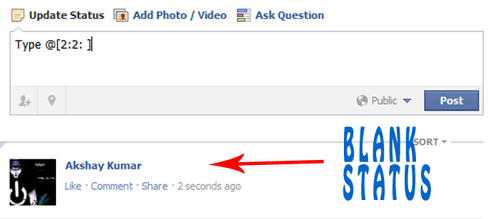
In this Trick you will know how to publish single line or multiple line Blank Status on facebook wall . You can also use this method in facebook comments. So lets get started.

For single line Blank Status

  • Copy below codes into your status
@[0:0: ]
  • Note:- the text is like @[0:0:space]
  • Don't write space where i have writen space rather press spacebar.

  For MultiLine Blank Status :

  • Paste as shown below in your staus.
@[0:0: ]
@[0:0: ]
@[0:0: ]
@[0:0: ]
@[0:0: ]
@[0:0: ]
  • Note there is space after 0:
  
Another method

  • Paste below codes into facebook status
@[2:2: ]

Tuesday, July 10, 2012

What's the difference between an Intel Core i3, i5 and i7?

0 comments

Intel Core i3, i5 and i7 CPUs have been around for over a year now, but some buyers still get stumped whenever they attempt to build their own systems and are forced to choose among the three. With the more recent Sandy Bridge architecture now on store shelves, we expect the latest wave of buyers to ask the same kind of questions.

Core i3, Core i5, Core i7

If you want a plain and simple answer, then generally speaking, Core i7s are better than Core i5s, which are in turn better than Core i3s. Nope, Core i7 does not have seven cores nor does Core i3 have three cores. The numbers are simply indicative of their relative processing powers.
Image credit: Intel.
Their relative levels of processing power are also signified by their Intel Processor Star Ratings, which are based on a collection of criteria involving their number of cores, clockspeed (in GHz), size of cache, as well as some new Intel technologies like Turbo Boost and Hyper-Threading.Core i3s are rated with three stars, i5s have four stars, and i7s have five. If you’re wondering why the ratings start with three, well they actually don’t. The entry-level Intel CPUs — Celeron and Pentium — get one and two stars respectively.
Note: Core processors can be grouped in terms of their target devices, i.e., those for laptops and those for desktops. Each has its own specific characteristics/specs. To avoid confusion, we’ll focus on the desktop variants. Note also that we’ll be focusing on the 2nd Generation (Sandy Bridge) Core CPUs.

Number of cores

The more cores there are, the more tasks (known as threads) can be served at the same time. The lowest number of cores can be found in Core i3 CPUs, i.e., which have only two cores. Currently, all Core i3s are dual-core processors.Currently all Core i5 processors, except for the i5-661, are quad cores in Australia. The Core i5-661 is only a dual-core processor with a clockspeed of 3.33 GHz. Remember that all Core i3s are also dual cores. Furthermore, the i3-560 is also 3.33GHz, yet a lot cheaper. Sounds like it might be a better buy than the i5. What gives? At this point, I’d like to grab the opportunity to illustrate how a number of factors affect the overall processing power of a CPU and determine whether it should be considered an i3, an i5, or an i7.Even if the i5-661 normally runs at the same clockspeed as Core i3-560, and even if they all have the same number of cores, the i5-661 benefits from a technology known as Turbo Boost.

Intel Turbo Boost

The Intel Turbo Boost Technology allows a processor to dynamically increase its clockspeed whenever the need arises. The maximum amount that Turbo Boost can raise clockspeed at any given time is dependent on the number of active cores, the estimated current consumption, the estimated power consumption, and the processor temperature.For the Core i5-661, its maximum allowable processor frequency is 3.6 GHz. Because none of the Core i3 CPUs have Turbo Boost, the i5-661 can outrun them when it needs to. Because all Core i5 processors are equipped with the latest version of this technology — Turbo Boost 2.0 — all of them can outrun any Core i3.

Cache size

Whenever the CPU finds that it keeps on using the same data over and over, it stores that data in its cache. Cache is just like RAM, only faster — because it’s built into the CPU itself. Both RAM and cache serve as holding areas for frequently used data. Without them, the CPU would have to keep on reading from the hard disk drive, which would take a lot more time.
Basically, RAM minimises interaction with the hard disk, while cache minimises interaction with the RAM. Obviously, with a larger cache, more data can be accessed quickly. All Core i3 processors have 3MB of cache. All Core i5s, except again for the 661 (only 4MB), have 6MB of cache. Finally, all Core i7 CPUs have 8MB of cache. This is clearly one reason why an i7 outperforms an i5 — and why an i5 outperforms an i3.

Hyper-Threading

Strictly speaking, only one thread can be served by one core at a time. So if a CPU is a dual core, then supposedly only two threads can be served simultaneously. However, Intel has introduced a technology called Hyper-Threading. This enables a single core to serve multiple threads.For instance, a Core i3, which is only a dual core, can actually serve two threads per core. In other words, a total of four threads can run simultaneously. Thus, even if Core i5 processors are quad cores, since they don’t support Hyper-Threading (again, except the i5-661) the number of threads they can serve at the same time is just about equal to those of their Core i3 counterparts.This is one of the many reasons why Core i7 processors are the creme de la creme. Not only are they quad cores, they also support Hyper-Threading. Thus, a total of eight threads can run on them at the same time. Combine that with 8MB of cache and Intel Turbo Boost Technology, which all of them have, and you’ll see what sets the Core i7 apart from its siblings.
The upshot is that if you do a lot of things at the same time on your PC, then it might be worth forking out a bit more for an i5 or i7. However, if you use your PC to check emails, do some banking, read the news, and download a bit of music, you might be equally served by the cheaper i3.At DCA Computers, we regularly hear across the sales counter, “I don’t mind paying for a computer that will last, which CPU should I buy?” The sales tech invariably responds “Well that depends on what you use your computer for.” If it’s the scenario described above, we pretty much tell our customers to save their money and buy an i3 or AMD dual core.
Another factor in this deliberation is that more and more programs are being released with multithread capability. That is they can use more than one CPU thread to execute a single command. So things happen more quickly. Some photo editors and video editing programs are multi-threaded, for example. However, the Internet browser you use to access Netbank or your email client is not, and is unlikely to be in the foreseeable future.

Saturday, June 2, 2012

Thursday, May 17, 2012

Facebook upgrade S-1 to describe its mobile faults

0 comments


facebook mobiles
As we zero in on D-day, when Facebook is a stock for all to buy into and fiscally dissect, the biggest social network once again amends its S-1 filing for its IPO for the sixth time.
This latest update, filed Wednesday afternoon, to admit that the mobile focus for the company has drastically slowed the pace that the company adds new users and could end up hurting the company revenue in the long run.
Since the original Facebook IPO filing, it has been understood that the company has still been grappling with how to truly monetize its mobile ecosphere since the platform doesn't incorporate Sponsored ads at the same rate as the browser-based platform. Facebook has looked at the news feed to inject its paid advertisements rather than banner or side-bar ads but finding the right combination and testing it has not been as quick of a process as some may wish.
In the latest S-1 filing, the company state that it does "not currently directly generate any meaningful revenue from the use of Facebook mobile products, and our ability to do so successfully is unproven."The filing goes on to point out that "the recent trend of our daily active users (DAUs) increasing more rapidly than the increase in the number of ads delivered. If users increasingly access Facebook mobile products as a substitute for access through personal computers, and if we are unable to successfully implement monetization strategies for our mobile users . . .”
So while Facebook is willing to admit the faults it has in its mobile dvertisements, the company also is posting its expectations that once it finds the right  combination, it will again take off like a rocket. Facebook has started its roadshow for an expected May 18 debut on NASDAQ and is crossing all of its t's and dotting all of its i's in these last few days, as investors pick away at S-1 filings for more details that it wants. One of these areas has clearly been in the mobile realm where everyone has been looing to find new revenue and growth, both of which Facebook has fallen short of and needs to provide better explainations about in order to get all of the money-men on board.